Search
Edit views
Once you create a custom view, you can change its name and description, add or remove columns, change left-to-right column order, or apply different filters. You can edit a specific view as described on this page, or manage all views at once.
Edit a view
- Click the Viewing menu in the upper-right corner of the page and click
 for the desired view.
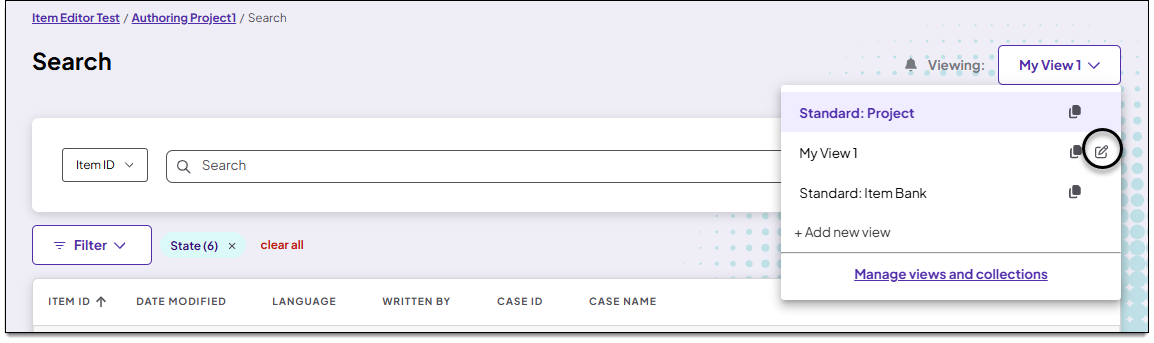
- On the Edit view page. you can do the following:
- Modify the name and description for the view in the View name and Description fields.
- If you want this view to be shown by default when you launch the Search page, turn Set view as default on
 . If you no longer want it to be shown by default, click again to turn it off
 . The default view will be reset to Standard.
- You can also change the columns and filters for the view as described in the following sections.
Edit columns
Choose which columns will be included on the Search page.
- Click and drag columns from the Available Columns list to the Selected Columns list to add them to the view. Or drag columns from the Selected Columns list to the Available Columns list to remove them from the view. (See Add new views for descriptions of each column.)
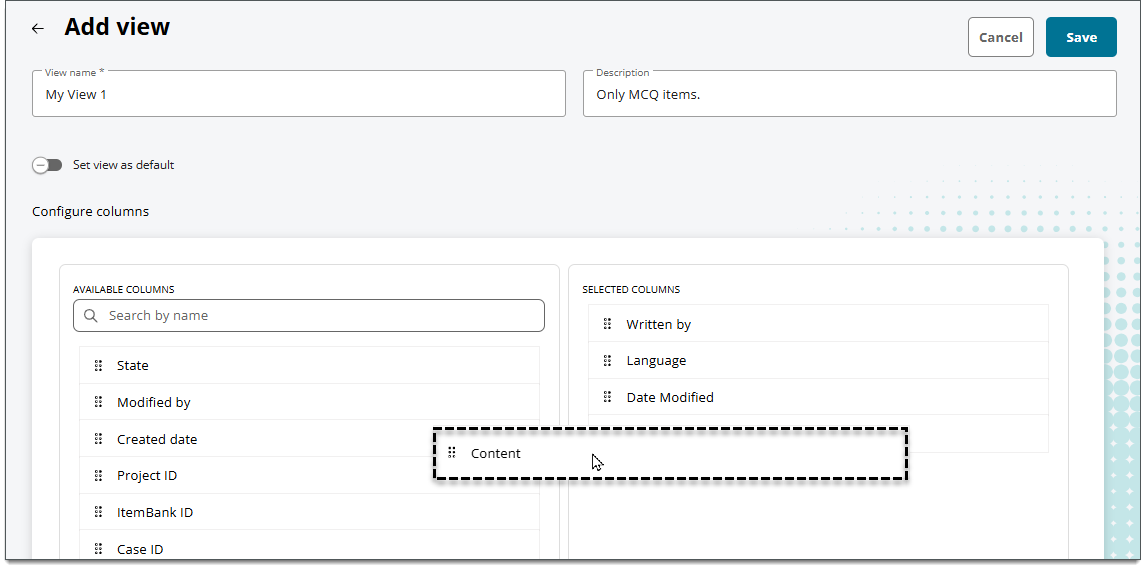
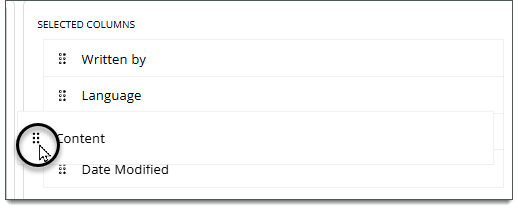
- To reorder columns, click the
 for a column and move it up or down in the list. The order of columns from top to bottom in this list will be displayed as the left-to-right order of columns on the Search page.
Edit filters
Apply filters to limit the items that are shown on the Search page.
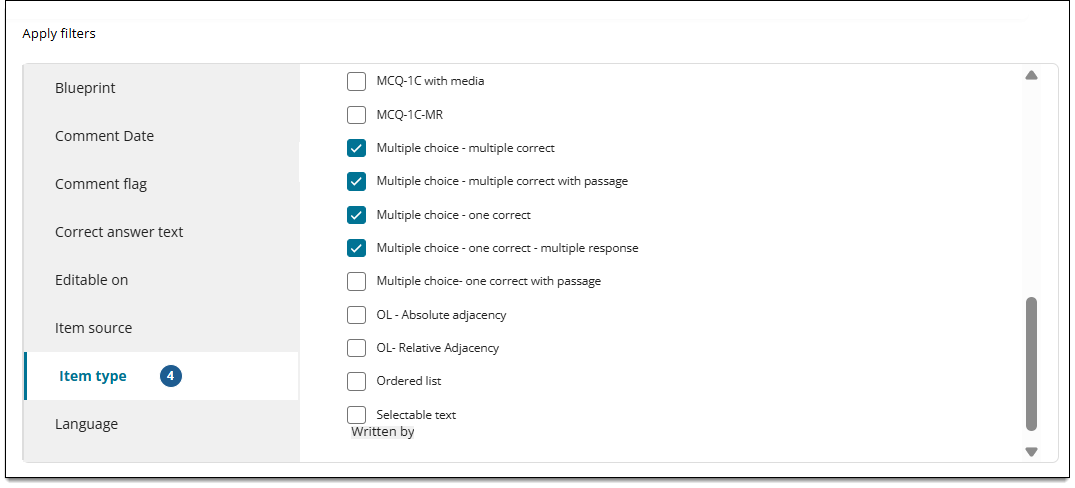
- Select a filtering category in the left panel to display the available options. (See Add new views for descriptions of each filter.)
- Select options for the filter in the right panel. The options you select will refine the items that are included in the search results when this view is selected on the Search page.
Save changes
- When done making changes, click Save.
- The Search page is displayed with your modified view.
Edit filters from search results
You can modify the filters for a custom view directly in the search results.
- Make sure the desired view is selected in the Viewing menu.
- Click the Filter menu to display options.
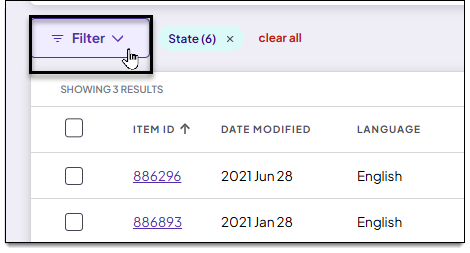
- Select a filtering category in the left panel, such as Item type. Then select the desired item type in the right panel.
- Click Apply.
- Click Save in the upper-right corner of the page.